Key Takeaways
- Some built-in ways of improving iPhone battery life include Low Power Mode and Dark Mode.
- If that’s not enough, you can manually adjust brightness and/or disable some wireless radios.
- Avoid processor-hungry apps like games and streaming video services.
In the race for the longest-running complaint Apple hasn’t solved on the iPhone, the “winner” is easily battery life. While the company tries to address it every year, sometimes even making substantial leaps, there’s still no such thing as a two-day iPhone, even if you shell out $1,200 for a Pro Max. Forget to charge your iPhone at night, and you may wake up to it dead in the morning.
When I don’t have easy access to a charger, I use various methods to keep my iPhone going until bedtime, even on cross-continental trips. I recommend keeping a battery packwith you if your phone is mission-critical, but otherwise, it shouldn’t be too hard to end the day with juice to spare.

Related
These are all of the Apple Watch’s safety features
While one of these features could save you or a loved one, you do need these specific Apple Watch models to have access.
1 Use Low Power Mode when you can
There’s no sense mashing the throttle all the time
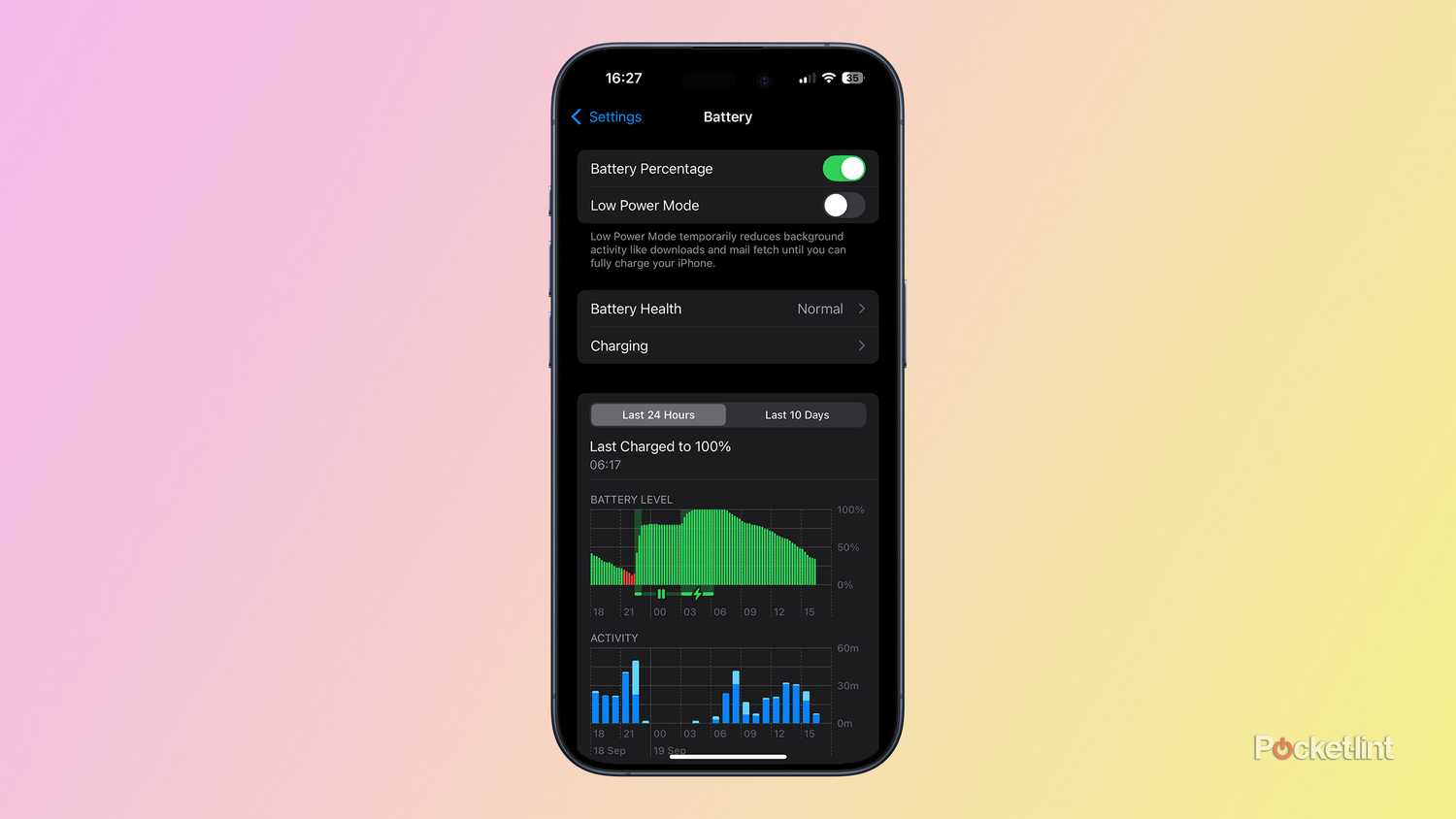
Apple’s default answer is Low Power Mode, but a mistake you might be making is waiting until your iPhone prompts you to turn it on. The longer Low Power Mode is on, the more battery you’ll save, so you might as well use it if you’re not doing anything important. You can toggle it manually by going to Settings > Battery or opening Control Center and tapping on the battery icon. You may need to customize Control Center if the icon is missing.
Below is a list of the changes Low Power Mode makes:
- Reduced screen brightness
- Reduced iOS animation
- Throttled/optimized performance
- Disabled background downloads for some apps, like Mail
- AirDrop, iCloud sync, and Continuity features are disabled
Note that Low Power Mode turns off automatically once your iPhone charges over a certain threshold.

Related
Does smart tech really add that much to your fitness regimen?
The full answer varies from person to person, but here’s my gym-buff take.
2 Temporarily disable wireless radios you don’t need
This is common sense for travelers

If Low Power Mode isn’t enough, an easy fallback is disabling Wi-Fi, cellular, and Bluetooth using the appropriate options in Control Center or the Settings app. Those radios always hunt for signals, even when they’re not connected or have nothing to connect to. There’s not much point in having Wi-Fi on if you’re on a remote hike in the Rockies.
You can disable multiple radios at once using Airplane Mode, but I prefer toggling things off individually. Why? I need Bluetooth for my headphones and Apple Watch, and even though I usually skip in-flight internet, some device functions, such as AirDrop, may depend on Wi-Fi being active.

Related
4 reasons you should use Apple Find My for peace of mind
It’s actually one of the most critical apps on your Apple device, so here’s why you should take advantage of it.
3 Drop brightness to the lowest readable level
Dealing with the number two battery killer

One of the perks of recent iPhones is incredible screen brightness that makes text legible in the midday sun. But if you’re not standing in line at Disney World or trying to get walking directions in New Orleans, you can probably afford to turn that brightness down a little — or a lot, if you’re indoors most of the time. An iPhone’s display is probably its most power-hungry component next to the processor.
The quickest way to adjust brightness is by opening Control Center and dragging the relevant slider. By default, this is a relative setting — your screen will still get brighter or darker depending on ambient lighting. If you’re worried about reading your iPhone in sunlight, tweak the Brightness slider slightly the next time you’re outside.

Related
The 7 must-have tech tools for travel I always keep in my bag
If your philosophy is to travel light, these are the seven tech tools that should always be in your bag.
4 Keep Dark Mode on permanently
Better efficiency, all the time

Apple / Pocket-lint
Brighter colors consume more power, so a simple way to improve efficiency is to leave iOS in Dark Mode 24/7. Go to Settings > Display & Brightness, select the Dark appearance, and toggle the Automatic option off.
This won’t make a massive difference if your iPhone is an LCD model like the 2022 iPhone SE, but the impact can be significant with OLED models like the iPhone 16. That’s because OLED screens don’t need a backlight, and will shut off individual pixels to achieve true blacks — so the darker your screen, the better. For the same reason, you might consider switching to darker homescreen and lockscreen wallpapers.

Related
Who is Apple’s new iPad mini even for?
The new mini is a potentially excellent iPad that’s stuck in limbo.
5 Avoid games and streaming video
Do less, save more

As I mentioned earlier, your iPhone’s processor is the number one battery life killer, but some activities put more strain on it than others. Think of it like a gas engine — you’ll consume much more gas at 80 MPH than you do at 40.
The most intense activity is high-end gaming since it tends to max out an iPhone’s CPU and GPU cores, especially on chips that aren’t state-of-the-art. 2D gaming is less demanding, but it still pulls more power than browsing the web or writing an email. Meanwhile, streaming video forces your iPhone to buffer and decode while constantly showing bright moving images. So, as tempting as it might be to stream a YouTube video while you’re waiting for a flight to board, I’d advise against it unless you’ve got a battery pack or outlet you can use.

Related
The Apple Watch Ultra 2 ‘update’ makes me question Apple’s commitment to fitness
Apple’s delay in updating the Watch Ultra 2 neglects performance on a device made for performance athletes.
Trending Products


LG UltraGear QHD 27-Inch Gaming Monitor 27GL83A-B – IPS 1ms (GtG), with HDR 10 Compatibility, NVIDIA G-SYNC, and AMD FreeSync, 144Hz, Black

Acer Nitro 27″ WQHD 2560 x 1440 PC Gaming IPS Monitor | AMD FreeSync Premium Up to 180Hz Refresh 0.5ms DCI-P3 95% 1 Display Port 1.2 & 2 HDMI 2.0 XV271U M3bmiiprx,Black



Lenovo 15.6″ FHD Laptop, Intel Pentium N6000 Quad-core Processor, 16GB Memory, 1TB SSD Storage, Ethernet Port, HDMI, USB-C, WiFi & Bluetooth, Windows 11 Home, WOWPC USB Bundle